Home Computer Repair Safety Basics for London, Ontario
Home computer problems have a way of showing up at the worst time, right when you need to hand in schoolwork, run a meeting, or pay bills. It can be tempting to grab a screwdriver and start fixing things yourself. Before you do, it is important to think about safety, both for you and your computer. A simple mistake can lead to electric shock, damaged parts, lost data, or even a voided warranty.
More people in London, Ontario work and study from home, so home computers have turned into daily tools, not just for fun. That means one small repair can have a big impact on your week. At Forest City Computer Repairs, we help with in-home computer repair in London, Ontario for Mac, PC, and laptops, and we see the same problems over and over that could have been avoided with a basic safety checklist.
Power Safety Basics Every Home User Must Follow
Any time you think about opening a computer, power comes first. Even a simple upgrade can be dangerous if you forget about the electricity still in the system.
Follow these steps before you touch anything inside a PC or laptop case:
- Shut down the computer properly, do not just hold the power button
- Unplug the power cord from the wall or power bar
- Disconnect chargers from laptops, monitors, and docks
- Wait a minute or two so parts can discharge
Laptops add one more risk. Even if the charger is unplugged, the battery still holds power. Many newer models hide the battery inside the case, so it is not easy to remove. Trying to poke around near a live battery can cause sparks or damage to the board. If you are not sure how to safely remove or isolate the battery, it is usually time to pause and get help.
Set up a safe workspace so you are not fighting with cords and clutter. Pick:
- A clean, dry table or desk
- No drinks, plants, or wet cloths nearby
- A power bar with surge protection, especially during summer thunderstorms in London
- Good lighting so you can see screws and connectors clearly
Power supplies and cords deserve extra respect. Never open a power supply unit, even if it looks dusty or noisy. The large capacitors inside can keep a dangerous charge long after the cord is unplugged. Also, skip any cable that is frayed, bent sharply, or feels loose in the outlet.
Stop what you are doing right away if you notice:
- A burning or hot plastic smell
- Sparks, popping sounds, or smoke
- The case or charger becoming very hot to the touch
Those are not normal signs. They often point to a deeper electrical problem that needs a trained eye, not more DIY attempts.
Prevent Static Damage with Simple ESD Habits
Electrostatic discharge, or ESD, is the tiny spark you sometimes feel when you touch a doorknob. You may barely notice it, but that same kind of static can silently kill computer parts like RAM, SSDs, and motherboards. The damage is often invisible, and the part might fail later, which makes it very frustrating to troubleshoot.
You do not need fancy tools to cut down ESD risk at home. Simple habits go a long way:
- Work on a wooden or laminated table, not on a bed or couch
- Avoid standing on a carpet if you can, or at least keep moves slow and gentle
- Before you touch parts, place one hand on a grounded metal object like a plugged-in PC case that is turned off
- If you have an anti-static wrist strap, clip it to bare metal on the case
If you do not have a strap, you can touch the metal case every few minutes to release any build-up of static. It is a small step, but it can save expensive parts.
Common mistakes to avoid include:
- Wearing wool or very fuzzy sweaters that build up static
- Working in a very dry heated room without any moisture in the air
- Placing parts on plastic bags or plastic covers instead of anti-static bags
- Rubbing components with paper towels or household cloths
The silver anti-static bags that parts come in are safe to place components on. The clear crinkly plastic bags that wrap many other products are not.
Data Backup Steps Before Any DIY Repair
When something goes wrong with a computer, many people first worry about the device itself. In reality, your data is usually the part you care about most. Family photos, school work, home office files, tax records, saved passwords, and emails are often much harder to replace than any piece of hardware.
That is why a simple backup routine before any repair is so important. Even if the job seems small, like cleaning dust from a fan, things can go sideways. A slip of a hand, a dropped screw, or a failing drive can turn a quick job into data loss.
Before you open anything up, try this quick checklist:
- Copy your key folders, like Documents, Desktop, and Pictures, to an external drive
- If you use a cloud backup or sync service, check that it has finished uploading recent changes
- On another device, make sure you can open a few files from your backup, such as a photo and a document
If the drive is already acting strange, be even more careful. Stop DIY work and look for help if:
- You hear clicking, grinding, or repeated spinning noises from the drive
- The computer stops seeing the drive on and off
- Files vanish, turn into gibberish, or refuse to open
Trying lots of software tools or power-cycling a failing drive over and over can make recovery harder. At that point, a trained technician has a better chance of saving your files.
Know Your Limits and When to Call a Professional
Some tasks are fairly low risk for handy home users, especially with the right tools and a bit of patience. Others are much easier to damage, even if you watch a few online videos first.
Jobs that many people can handle with care include:
- Cleaning dust from fans and vents using short bursts of compressed air
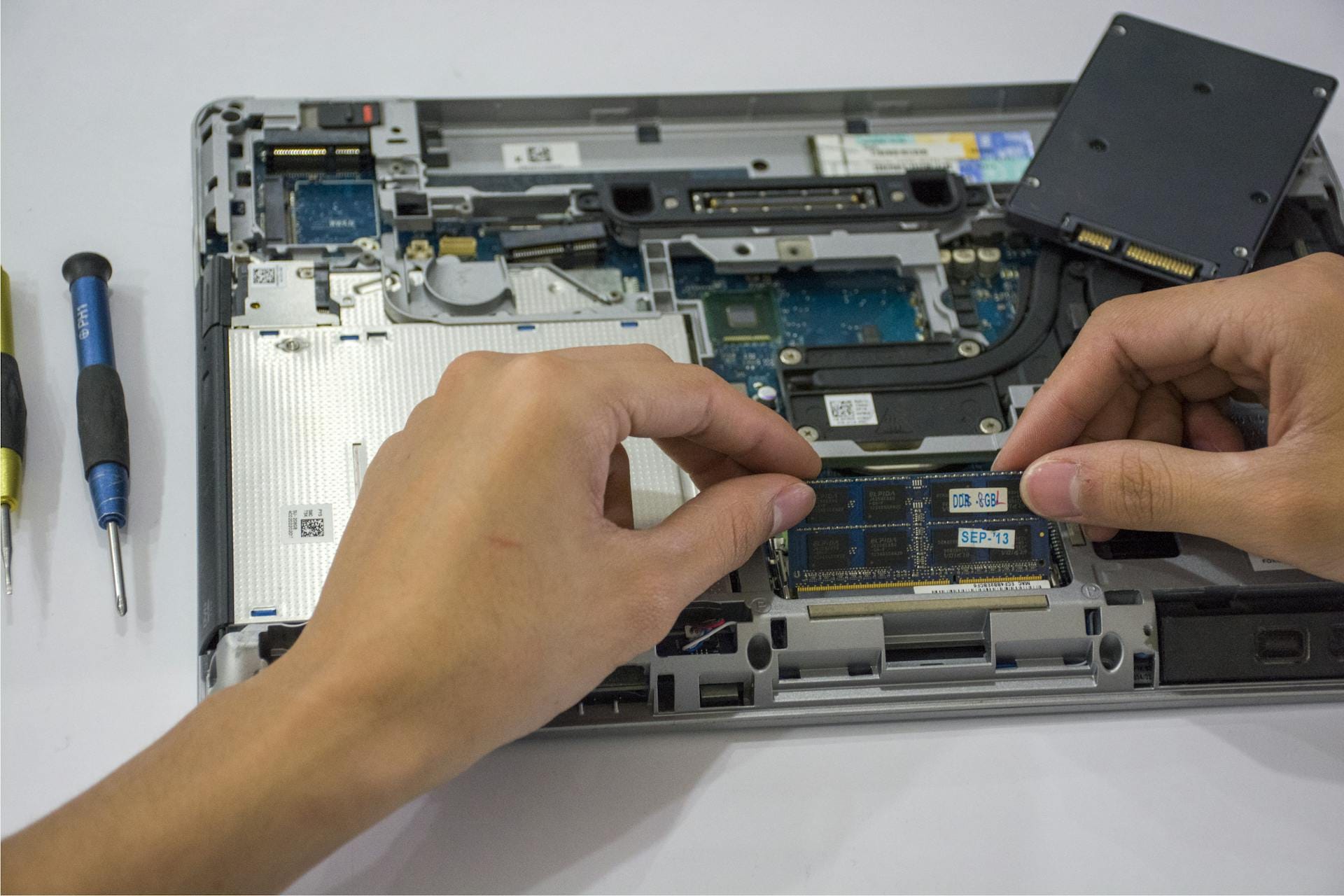
- Adding or replacing RAM in a desktop with clear, easy access
- Swapping a desktop hard drive or SSD in an accessible bay
- Changing a plug-in keyboard or mouse
On the other hand, higher-risk work often calls for a professional touch, such as:
- Liquid damage on a laptop or desktop
- Power supply problems or strange power behaviour
- Motherboard repairs, including tiny ports and chips
- Screen repairs on thin laptops or all-in-one systems
Watch for warning signs that tell you to stop at once:
- Burning smells or smoke from any part of the system
- Repeated shutdowns or restarts under light use
- Visible liquid, sticky marks, or corrosion on components
- BIOS or firmware updates that freeze or fail repeatedly
At that stage, guessing can quickly lead to more damaged parts and more stress. A trusted local technician can test each piece, track down the true cause, and help you decide the safest next step. For people in London, professional in-home computer repair in London, Ontario can also mean less unplugging and hauling gear around the city.
Turn Your Safety Checklist Into a Repair Habit
Good repair habits work best when you follow them every time, not just when things are clearly broken. A simple safety checklist you keep near your desk can remind you of those small but important steps around power, static, and backups.
Your checklist might include:
- Shut down, unplug, and wait before opening anything
- Check the workspace for liquids and clutter
- Ground yourself or use an anti-static strap before touching parts
- Back up important files and test that the backup opens
- Stop immediately if you see or smell anything odd
Many households in London like to do a bit of tech cleanup as the weather warms up. That can be a good moment to add safe habits, such as cleaning out dust, checking that backups are current, testing surge protectors, and reviewing passwords and security settings. With a calm, careful approach, you can keep your home computer running more smoothly and lower the chance of costly surprises, while still knowing when it is smarter to put the tools down and let a professional step in.
Get Fast, Local Tech Support Without Leaving Home
If your computer is acting up and you do not have time to disconnect everything and drive across town, our team at Forest City Computer Repairs can come to you. Learn how we keep your devices secure and running smoothly with in-home computer repair in London, Ontario. When you are ready to book a visit or ask a question, simply contact us and we will help you schedule a convenient time.