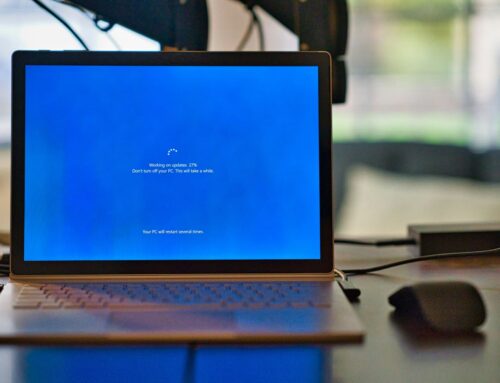
Having trouble with your desktop screen? It’s a common problem many of us face. Sometimes, your screen might just go dark or display odd colours for no apparent reason. These display issues can turn a simple task into a source of frustration. Imagine trying to finish a project or watch a movie, only to be halted by a blink of a screen. The good news is that these troubles are often fixable without much hassle, and you don’t need to get overly technical to solve them.
Being aware of what could be causing these problems is the first step. From faulty connections to incorrect settings, a variety of factors might be responsible. By carefully checking a few things, you can often resolve these issues and get back to your activities quickly. Let’s explore some simple methods to help restore your screen to a working state.
Check the Power and Connections
Before diving into more complicated solutions, it’s wise to start with the basics: power and connections. These might seem obvious, but they are often the root of the problem.
– Secure Connections: Check all the cables connected to your desktop, especially those leading to the monitor. They need to be securely plugged in. A loose or damaged cable can easily cause the screen to flicker or shut off.
– Power Source: Make sure that everything is plugged into a live power source. If the monitor isn’t getting power, you might see nothing on the screen. Swap the power cable to ensure it isn’t a faulty lead.
– Look for Damage: Inspect cables and ports for visible signs of damage. A frayed cable or bent port can disrupt the signal between your computer and the display. If anything looks worn or damaged, replacing it could solve the issue.
Taking these steps can often resolve simple display problems without needing to dive deeper into settings or hardware. If the issue persists, there are other things you can attempt to pinpoint and fix the cause.
Troubleshoot the Display Settings
If the issue still lingers after checking cables and power, it’s time to explore the display settings of your computer. Sometimes, adjusting a few settings can make all the difference.
– Resolution and Refresh Rate: Start by ensuring the resolution matches what your monitor supports. A mismatched resolution can cause a blurry display or odd colouring. Adjust this in the screen settings found in your computer’s dashboard. Similarly, make sure the refresh rate is set to a compatible setting, as a too-high or too-low rate can cause flicker or stutter.
– Alternative Monitor: A simple way to pinpoint the issue is to test your setup with another monitor if available. This step can help determine if the issue is with the monitor itself or elsewhere in the system. If a different display works perfectly, your current monitor might need repair or replacement.
– Colour Calibration: Incorrect colour settings can also present as display issues. Use the system’s built-in calibration tools to ensure colours are accurate. If colours appear off or washed out, a quick calibration may bring your display back to life.
Inspect the Graphics Card
Your graphics card is the engine behind your visuals. If your display problems persist, it might be worth checking this critical component.
– Proper Seating: Open your computer cautiously and visually check that the graphics card is properly seated in its slot. A slight knock or jolt can loosen it and cause display problems.
– Update Drivers: Outdated drivers could be at fault. Search for the latest driver on the manufacturer’s website and install it to ensure the graphics card functions optimally. New drivers often fix bugs and enhance performance.
– Test on Another Machine: If the card still causes trouble, try installing it in a different computer if you have access to one. This test can confirm if the card itself is faulty or if the problem lies with the original machine.
Monitor for Overheating Issues
Overheating can wreak havoc on computer components, including the display. If your desktop feels hot to the touch, it might need a bit of cooling down.
– Internal Cleaning: Dust build-up can clog airways and force hardware to overheat. Periodically cleaning the interior can improve airflow and cooling. A can of compressed air works great for blowing away trapped dust.
– Ensure Ventilation: Make sure your desktop has space for adequate air circulation. If it’s crammed against a wall or in an enclosed cabinet, relocating it could solve temperature problems. Position it so that vents aren’t blocked and airflow is unobstructed.
– Thermal Paste Replacement: Over time, the thermal paste on your processor can dry out and lose effectiveness. Replacing it can help improve heat transfer and lower temperatures, supporting overall performance.
Get Back On Track
Display issues can certainly be a pain, but they don’t have to ruin your day. By systematically checking each potential problem area, you can often identify and fix the issue without outside help. A bit of patience and attention often brings your desktop back to good working order.
If persistent display issues continue to trouble you, seek professional assistance to avoid larger underlying problems. A skilled technician can prevent minor issues from escalating, ensuring that your desktop stays in good shape. Keep your equipment running smoothly and enjoy your computing experience without unnecessary interruptions.
If your desktop continues to experience display issues after trying several troubleshooting steps, it may be time to seek professional help from Forest City Computer Repairs. Our experienced technicians in London can diagnose and resolve the problem efficiently, ensuring your system runs optimally. For more details, learn more about desktop computer repair to restore your screen to its best performance.