Have you noticed odd sounds coming from your desktop computer lately? It can be quite alarming when your trusty device starts making noises it never did before. These sounds can range from mild clicks to loud grinding, and they often hint at underlying issues that might require attention. Understanding why your desktop is acting up can help you maintain it better and ensure smooth operation.
London, with its fluctuating weather around December, often presents unique challenges for electronics. As we approach the colder months, devices might behave differently due to various external factors. It’s essential to identify and address any unusual noises promptly to prevent further complications. Let’s look into what might be causing your desktop to make these sounds and how you can tackle them effectively.
Identifying Common Sources of Noise in Desktops
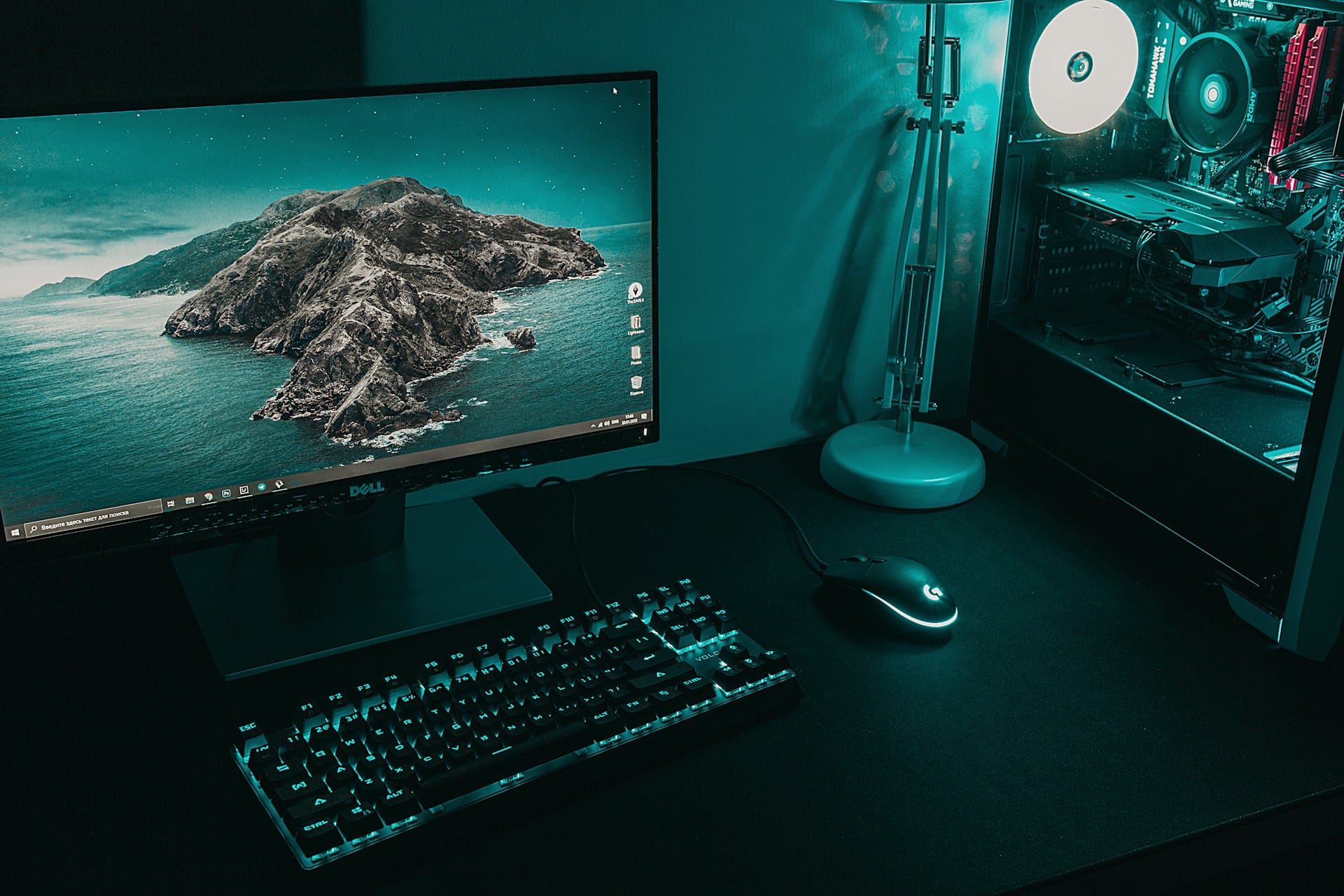
Various components inside a desktop can produce noise, each with different reasons and implications. Recognising where these sounds originate can help you narrow down potential problems.
– The Hard Drive and Fans: What to Listen For
When the hard drive starts making a noticeable noise, it might indicate wear and tear. Typically, hard drives emit a soft whirring sound, but if you hear clicking or grinding, it could signal trouble. Fans, on the other hand, are designed to cool your processor and graphics card. If these fans buzz louder than usual, it might mean they are clogged with dust or not functioning correctly.
– Power Supply Issues: Signs of Trouble
If your desktop’s noise sounds like a constant hum or a buzzing near the back, the power supply might be the culprit. When the power supply unit (PSU) struggles or fails, it often produces unusual sounds. This issue could lead to more severe damage if not resolved swiftly.
– Loose or Faulty Components: Rattling and Clicking Sounds
Loose screws or parts can generate rattling sounds inside the tower. If your computer is clicking, it might be worth checking whether any cards or drives are securely fastened. Also, a failing component may cause mechanical clicks signaling it requires repair or replacement.
Understanding these common noise sources allows you to observe your device carefully and decide whether a quick fix or expert help is the best course of action. Addressing such problems promptly ensures your desktop remains in top condition, especially during the colder months when it’s needed the most.
Steps to Diagnose and Resolve Noise Issues
Once you’ve identified the potential noise sources, the next step is to pinpoint and address these issues before they escalate. Here’s how to handle some of the more common problems:
1. Checking and Cleaning the Fans
– Unplug your desktop and carefully remove the side panel.
– Gently clean any dust buildup from the fans using compressed air. Make sure the fans spin freely and aren’t obstructed by wires or other components.
– Reassemble the side panel and power on your desktop to see if the noise has reduced.
2. Inspecting the Hard Drive for Operation Sounds
– Listen for repetitive clicking noises coming from the hard drive. If present, consider backing up important data as it might be failing.
– Make sure the hard drive is securely fastened to its bay to prevent rattling.
– Keep an ear out for grinding noises, as these may indicate a more serious problem.
3. Ensuring All Internal Components Are Secure
– Check all internal connections. Loose cables or connectors can cause intermittent noise.
– Make sure screws securing components like the graphics card or motherboard are tightened.
– Inspect any add-on cards for secure seating in their slots.
When to Seek Professional Help
There comes a point where trying to fix your desktop’s noise problems at home might not be enough. Here’s when you might need to reach out for expert assistance:
– Recognizing When DIY Is Not Enough
– If the noise persists despite your best efforts.
– When the computer frequently crashes or other performance issues arise alongside the noise.
– If you’re unsure about handling delicate components and fear causing more damage.
– Importance of Expert Diagnosis and Repair
– Professionals can provide a thorough check of your desktop, potentially spotting issues you might have missed.
– They have the tools and expertise to safely manage hardware repairs or replacements.
– Quick and efficient solutions can prevent damage that could lead to more significant and costly repairs.
Keep Your Desktop Running Quietly
Looking after a desktop goes beyond addressing problems as they arise. Regularly maintaining your device can keep it quiet and prolong its life.
– Tips for Regular Maintenance
– Clean the inside of your desktop at least twice a year to avoid dust accumulation.
– Make sure to place your desktop in a well-ventilated area to prevent overheating.
– Keep drivers and software updated to ensure everything runs efficiently.
– Benefits of Professional PC Repairs in London
– Seasonal checks can help adapt your device to changing climates, especially during London’s colder months.
– Professionals are equipped to deal with any unforeseen complications that might arise during routine maintenance.
A quiet desktop is more than just a convenience; it’s a sign that your system is running smoothly and efficiently. With these tips in mind, you can enjoy a peaceful computing experience and keep your device in top shape, no matter the season.
If your desktop’s noises are becoming a concern, let professionals take the guesswork out of the process. Forest City Computer Repairs can help with thorough assessments and solutions tailored to your needs. Visit us for PC repairs in London to ensure your desktop runs smoothly and quietly in any season.